Emoji Maker Pro
- 3.1
- Rating
- 100.00K
- Installs
- Free
- Price

 Analysis by App-foxy
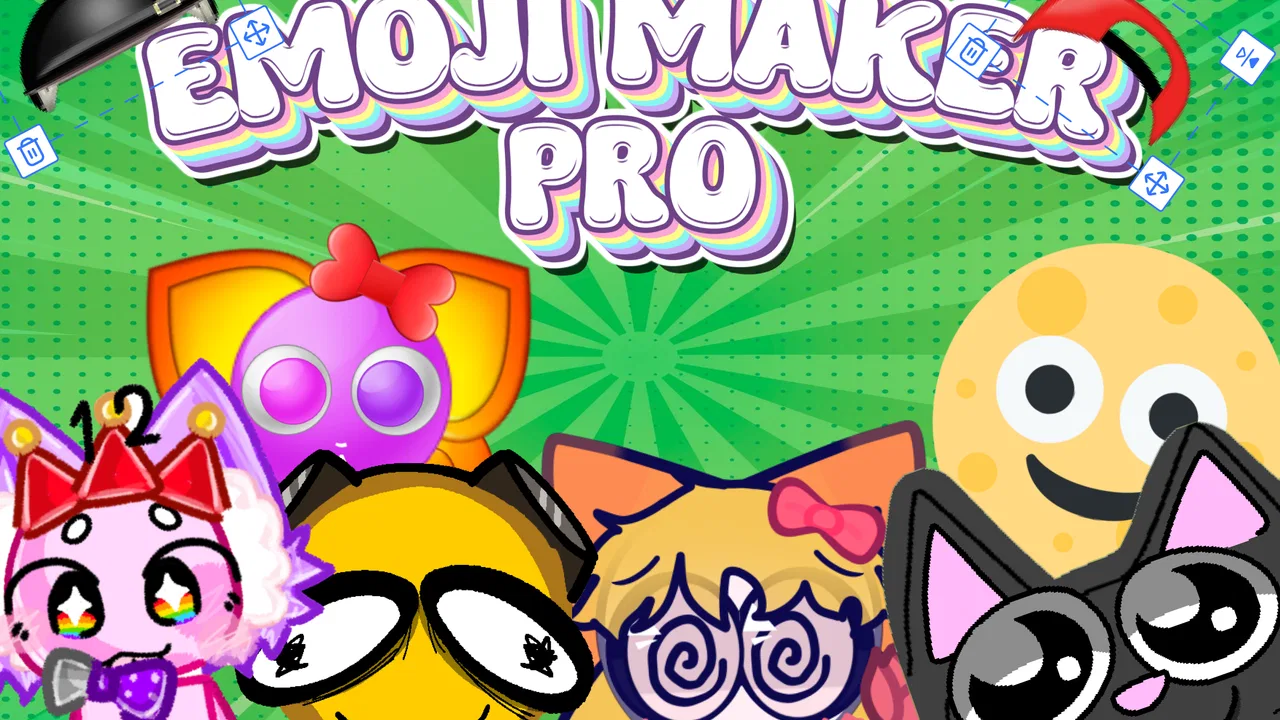
I opened Emoji Maker Pro expecting a quick way to make something more personal than the standard emoji keyboard, and that is exactly the kind of experience this app is aiming for. It belongs to the personalization category, is free to use, and focuses on creating custom emoji, horror-themed emoji, and animated stickers without making the idea feel like a serious design project. For a first-time user, the appeal is simple: start with an idea, turn it into a visual message, and use it when ordinary emoji no longer say quite enough.
My first impression is that this is best understood as a creative utility rather than a complete messaging platform. It does not replace the keyboard you already know, and it is not trying to become a full illustration editor. Instead, it gives you a more playful route to making expressive images for chats, reactions, jokes, and personal posts. That narrower purpose is useful because I can open it with a specific goal instead of wandering through a large collection of unrelated tools.
What to expect before making your first emoji
The app comes from Revivoskin and has reached over 100 thousand installs, while its average score sits at 3.1 from more than 300 ratings. I read that combination as a sign to keep expectations practical. There is clearly enough interest for people to try it, but the experience will not suit everyone equally. I would approach it as a convenient creative tool with room for rough edges, not as a polished professional graphics package.
You May Also Like

 Blood Strike: 2.5 Anniversary
Blood Strike’s Loadouts Turn Every Drop Into a Tactical Gamble
A close look at Blood Strike’s custom loadouts: how fast access to signature weapons reshapes its battle royale rhythm, rewards preparation, and narrows the gap between fights.

 Pandora - Music & Podcasts
Pandora’s Music Is Easy to Start, but Harder to Recover
Pandora’s strength is its low-effort path from a seed to a station. Its weak spot is how much confidence it asks you to place in connection, setup, and quiet recovery.

 8 Ball Pool
 Is Built on Rivalries, Rematches, and Routine
A close look at the rivalries, rematches, shared routines, and unanswered safety questions that turn a quick pool match into a persistent mobile community.

 Samsung Music
’s Quiet Strength Is Playing What You Already Own
Its reach comes less from spectacle than from dependable access to a personal library. That simplicity is both the app’s strongest retention engine and its ceiling.

 AccuWeather: Weather Radar
AccuWeather Review: A Quick, Clear Forecast for Everyday Decisions
For everyday plans, the best forecast is the one you can understand quickly. AccuWeather makes rain timing, radar, and local conditions easy to act on, with a few trade-offs.

 Hill Climb Racing
Why Hill Climb Racing Still Turns Crashes Into One More Run
A tiny car, a bumpy hill and one more upgrade: Hill Climb Racing keeps resurfacing because its simple chaos makes every near-miss feel personal.
More From Our News Desk



The main attraction is the mix of ordinary custom emoji, horror emoji, and animated stickers. Those choices give the app a more distinctive personality than a basic sticker collection. If you enjoy turning an inside joke into a visual reaction, making a creepy character for a themed conversation, or adding motion to a message, the concept makes sense quickly. If you only want a huge ready-made library and never plan to customize anything, a conventional sticker app may be faster.
I also like that the age rating is Everyone. That makes the app easier to consider for family chats, classroom-friendly creative activities, or a shared device, although the horror direction still calls for personal judgement. “Horror” can mean anything from playful spooky faces to imagery that some people may find uncomfortable, so I would preview anything before sending it to a younger child or a group where the tone matters.
The app is free, which lowers the barrier to trying it. That matters here because the value depends on whether its creative workflow matches your habits. You do not need to commit to a paid tool just to discover that you prefer making images somewhere else. I would still treat free creative apps with the same care as any other app: review what is on screen, avoid rushing through prompts, and keep your first project simple.
Its current version is 1.0.3, and it supports devices running Android 7.0 or later. That gives the app a broad potential device range, including older Android phones. On an older device, I would begin with a small test project rather than immediately attempting a complicated animated sticker. That first test tells you more about how comfortable the app feels on your particular phone than any general expectation can.
Start with a message, not with every option
My strongest advice is to decide what you want to communicate before exploring the creative controls. For example, choose one of three goals: a friendly reaction for everyday chat, a spooky image for a themed conversation, or a moving sticker that adds energy to a short message. This prevents the common first-session problem of tapping through every possibility without finishing anything.
A useful first project could be a custom reaction for a friend who often sends you the same kind of joke. Rather than trying to build a perfect character, think about the emotion first: disbelief, celebration, embarrassment, or mock anger. The most successful custom emoji are usually recognizable at a glance. A simple face with a clear mood is more useful in a conversation than a busy design whose details disappear when it is viewed small.
That is also where the app’s horror option can work well. A spooky emoji does not need to be elaborate. A strange expression, unsettling eyes, or a darkly comic reaction can communicate a tone that a standard laughing or surprised emoji cannot. I would use the horror style when the conversation already supports it, rather than treating it as an automatic improvement for every sticker.
Getting through the first setup without overthinking it
After installation, I would keep the setup deliberately light. Look for the creation route first, then choose the simplest available starting point. The goal is not to understand the entire app in one sitting; it is to reach one finished result. If the first screen presents several styles or creation choices, select the one closest to your intended message and leave experimentation for later.
When an app offers both custom emoji and animated stickers, it is easy to assume that the moving option is always better. In practice, I would begin with a still design. A static image gives you a chance to understand the visual language of the app, check whether the expression reads clearly, and decide whether the finished result feels like something you would actually send. Animation is more useful after you know what the design is supposed to communicate.
For a first setup, I would also create a small personal system. Make one ordinary reaction, one exaggerated reaction, and one spooky reaction. This gives you three different tests: clarity, personality, and style. You will quickly see whether the app feels better for subtle everyday communication or for deliberately dramatic images. That is more informative than producing several versions of the same face.
One point that can confuse new users is the difference between creating an image and using it in a conversation. A maker app may help you produce the visual, but the final sending step still depends on how your phone and messaging service handle the result. I would finish the design, save or export it through the option the app presents, and then test it in a low-stakes chat. Do not assume that a custom creation will behave exactly like a built-in keyboard emoji.
This distinction is especially important for animated stickers. Motion may be preserved differently depending on where you share the result, and some services may treat a visual as an image rather than as an integrated sticker. The practical solution is simple: send a test to yourself or to a trusted contact before building a whole themed set. That small check prevents the disappointment of discovering later that the destination does not display the creation as expected.
The first meaningful success: make one reaction you will reuse
For my first useful result, I would make a reaction connected to a real routine. Imagine that a friend regularly asks whether you are free, and you want a playful way to say “I am busy but still listening.” A custom face with a clear expression can become more personal than repeatedly choosing a standard emoji. The important part is not artistic complexity; it is making something that solves a tiny communication problem.
Keep the design readable at a small size. Use one dominant expression instead of several competing details. If you are working in the horror style, choose one visual idea and let it carry the mood. If you are making an animated sticker, use motion to emphasize the reaction rather than adding movement simply because the option exists. A brief, understandable action is more likely to be reused than an effect that makes the message difficult to interpret.
Before sharing, pause and inspect the result as if it came from somebody else. Can you understand the emotion immediately? Does the design still work without a caption? Would it look awkward in a serious conversation? These questions are more valuable than asking whether the emoji looks impressive inside the editor. Custom visuals live in context, and a design that looks clever during creation can become confusing once it is placed beside ordinary messages.
Once the first creation is ready, send it in the conversation where you planned to use it. That confirms the complete path from idea to communication. If it works well, keep that workflow in mind for future projects: define the purpose, make the simplest readable version, test the sharing result, and only then add more personality. This approach makes the app feel reassuring instead of demanding.
Three practical habits that make the app more useful
Build by conversation rather than by theme alone. Instead of making a random collection of cute or scary designs, create small groups for situations you actually encounter: greetings, agreement, disbelief, celebration, and a private joke. This makes the finished creations easier to remember and more likely to be used. It also reveals whether the app is helping your communication or merely giving you another place to collect images.
Use still designs as templates for motion. If an expression already works as a static emoji, it gives you a clear base for an animated version. You can then judge whether the movement adds meaning. This is a better workflow than starting with animation, because it separates two decisions that are easy to mix up: what the image says and how it moves.
Test the destination before making a batch. A creation can look correct inside the maker and still feel different when shared in a chat. Check its appearance, size, and motion in the service you use most. This is particularly worthwhile for someone who plans to make a set for a group conversation, because a small compatibility or presentation issue becomes frustrating when repeated across many designs.
A fourth habit is to keep the tone of the recipient in mind. Horror emoji can be funny among friends who enjoy that style, but the same image may be a poor choice for a work discussion or a family group. The app makes unusual expression easy; it does not decide when unusual expression is appropriate. I see that as part of the creative responsibility of using it.
Common confusion and where the experience can feel limited
The most likely confusion is expecting a custom emoji to work exactly like a native emoji. Native emoji are part of the phone’s text system, while creations from a separate app may be shared as images or stickers. If you want a symbol that appears inside every text field with the same behavior as the standard keyboard set, this may not be the right solution. A keyboard-focused tool or the built-in emoji collection will be more convenient for that specific need.
Another possible misunderstanding is assuming that “animated” automatically means universally supported. The result may be most enjoyable in places that preserve sticker or image behavior, but the receiving app controls much of what the other person sees. I would not use a custom animated sticker for information that must be understood instantly. For practical communication, a clear still image or ordinary text is safer; animation is best for mood, humor, and emphasis.
The 3.1 average rating also makes me cautious about recommending it to someone who expects flawless polish. That score does not tell me exactly which parts individual users liked or disliked, but it does suggest that the app may have a mixed reception. My advice is to judge it by a small, realistic trial. Make one design, share it, and see whether the process feels natural on your device. If the basic workflow already feels awkward, producing a large collection will not fix that.
I would also skip it if your main goal is professional branding. A business owner who needs tightly controlled typography, repeatable layouts, transparent export settings, or a formal asset library will probably be better served by a dedicated graphics editor. Emoji Maker Pro is more appealing when personality matters more than production precision. Its strength is quick expression, not replacing a full design workflow.
Likewise, people who want a massive catalog of finished stickers may prefer a traditional sticker marketplace. This app makes sense when you want to participate in the creation. If you would rather search, tap, and send without adjusting anything, the extra creative step may feel like work. I personally think the app earns its place when the custom element is the reason you opened it.
Who will get the most from it?
I would recommend it to someone who enjoys private jokes, expressive chat reactions, spooky humor, or small creative projects that can be completed in a few minutes. It is also a reasonable choice for a first-time creator who feels intimidated by advanced design software. The concept is approachable because the finished object is familiar: an emoji or sticker, not a poster, video, or complete illustration.
It can also suit families or friend groups that want a shared visual language. One person can make a recognizable reaction for a recurring situation, then use it whenever that situation appears. Over time, those images can become part of the group’s humor. The best results will come from designs tied to actual people and conversations, not from trying to imitate every popular sticker style.
I would be less enthusiastic for users who need dependable cross-platform behavior, highly polished professional assets, or deep control over every visual detail. I would also suggest caution for anyone who dislikes trial and error. Even a simple creative app asks you to make choices, inspect the result, and test how it travels outside the editor. If that process sounds annoying, a ready-made sticker app will likely be a better match.
My next-step recommendation after the first creation
After making one successful reaction, I would not immediately create dozens more. Use the first one in a real conversation and notice what happens. Do people understand it without explanation? Do you reach for it again? Does the still or animated format feel more natural? Those observations tell you what to make next and keep the app connected to actual use rather than turning into an endless design exercise.
My suggested second project would be a small three-piece set: one positive reaction, one negative or doubtful reaction, and one deliberately dramatic option. Keep the visual identity consistent so the set feels intentional. This is a useful test of whether you enjoy the app’s creation process, because repeating a style is more revealing than making a single novelty image.
If the set works, move into the horror side with restraint. Try a spooky version of an emotion you already use instead of designing an unrelated monster. That approach gives the style a purpose: surprise, mock panic, or playful discomfort. It also makes the result easier to understand in a normal conversation.
For animation, start only when a still design already communicates well. Ask what the movement contributes: a reaction that grows, shakes, celebrates, or pauses can feel meaningful, while random motion can distract from the face. Share the finished sticker in the chat you use most and check it from the recipient’s point of view. That simple test is the clearest way to decide whether animation is worth incorporating into your personal set.
Emoji Maker Pro is not a universal replacement for a keyboard, a professional editor, or a large sticker library. In my experience, its value is more specific and more personal: it gives you a low-pressure way to turn a feeling, joke, or spooky idea into something you can send. The free price makes experimentation easy, the Everyone rating keeps the audience broad, and the focus on custom and animated expression gives it a clear reason to exist.
My recommendation is to try it with one real conversation in mind. If you enjoy making a readable reaction and the sharing step fits your messaging habits, the app can become a fun personalization tool. If you need instant keyboard access, guaranteed behavior everywhere, or professional-level design controls, choose a more specialized alternative. For first-time users willing to start small, test the result, and build from what they actually reuse, it offers a friendly route into custom emoji without asking for a major creative commitment.
FAQs for Emoji Maker Pro
01What is Emoji Maker Pro?
Emoji Maker Pro is a creative app that allows users to design custom emojis. It provides a wide range of features, including various facial expressions, accessories, and color options. Users can personalize their emojis to reflect their unique style and use them across different messaging platforms.
02Is Emoji Maker Pro free to use?
Emoji Maker Pro offers both free and premium versions. The free version includes basic features, while the premium version unlocks additional customization options and removes ads. Users can choose to make a one-time purchase or subscribe for ongoing access to premium features.
03Can I use my custom emojis in other apps?
Yes, once you create an emoji with Emoji Maker Pro, you can save it to your device as an image. This allows you to use your custom emojis in various messaging apps, social media platforms, and even emails, enhancing your communication with personalized expressions.
04Is Emoji Maker Pro available for both Android and iOS devices?
Yes, Emoji Maker Pro is available for download on both Android and iOS platforms. You can find it on the Google Play Store and the Apple App Store, making it accessible to a wide range of mobile users who want to personalize their emoji experience.
05Does Emoji Maker Pro require an internet connection?
Emoji Maker Pro primarily functions offline, which means you can create and save emojis without an internet connection. However, certain features, such as downloading additional content or accessing updates, may require a connection to function properly.
Pros
- Extensive library of emojis to choose from.
- Easy-to-use interface for quick creation.
- High customization with color and size options.
- Fast sharing directly to social media platforms.
- No ads in the premium version.
Cons
- Limited free features without subscription.
- Occasional lag on older devices.
- Watermark on free version exports.
- In-app purchases can be pricey.
- No offline mode for emoji creation.

Emoji Maker Pro
Gallery